
What this unlocks
Track user behavior and conversion events. Once connected, Google Analytics 4 data shows up in these places in your dashboard:
Visitors chart
The Visitors chart on Insights → Visitors & Leads.
Report sections
Visitor and engagement figures in your long-form Reports.
We only report on your Salient pages. Visitor figures are filtered to the pages Salient publishes (for example everything under /feeds, or your feeds subdomain), not your whole website.
Before you begin
Have these ready. The connection itself only takes a few minutes.
- A Salient dashboard login with access to the brand you are connecting.
- A Google account with at least Viewer access to the GA4 property for your website.
- A GA4 property. Old Universal Analytics properties are not supported.
Step by step
-
Open Integrations in the dashboard
Sign in at app.salientnow.io. If your login covers more than one brand, pick the brand you want to connect on the
Pick the brand you want to work on.
screen. Then click Integrations in the left sidebar.Cards are grouped under Analytics and CRM. You can also type in
Search for an integration...
to find the Google Analytics 4 card.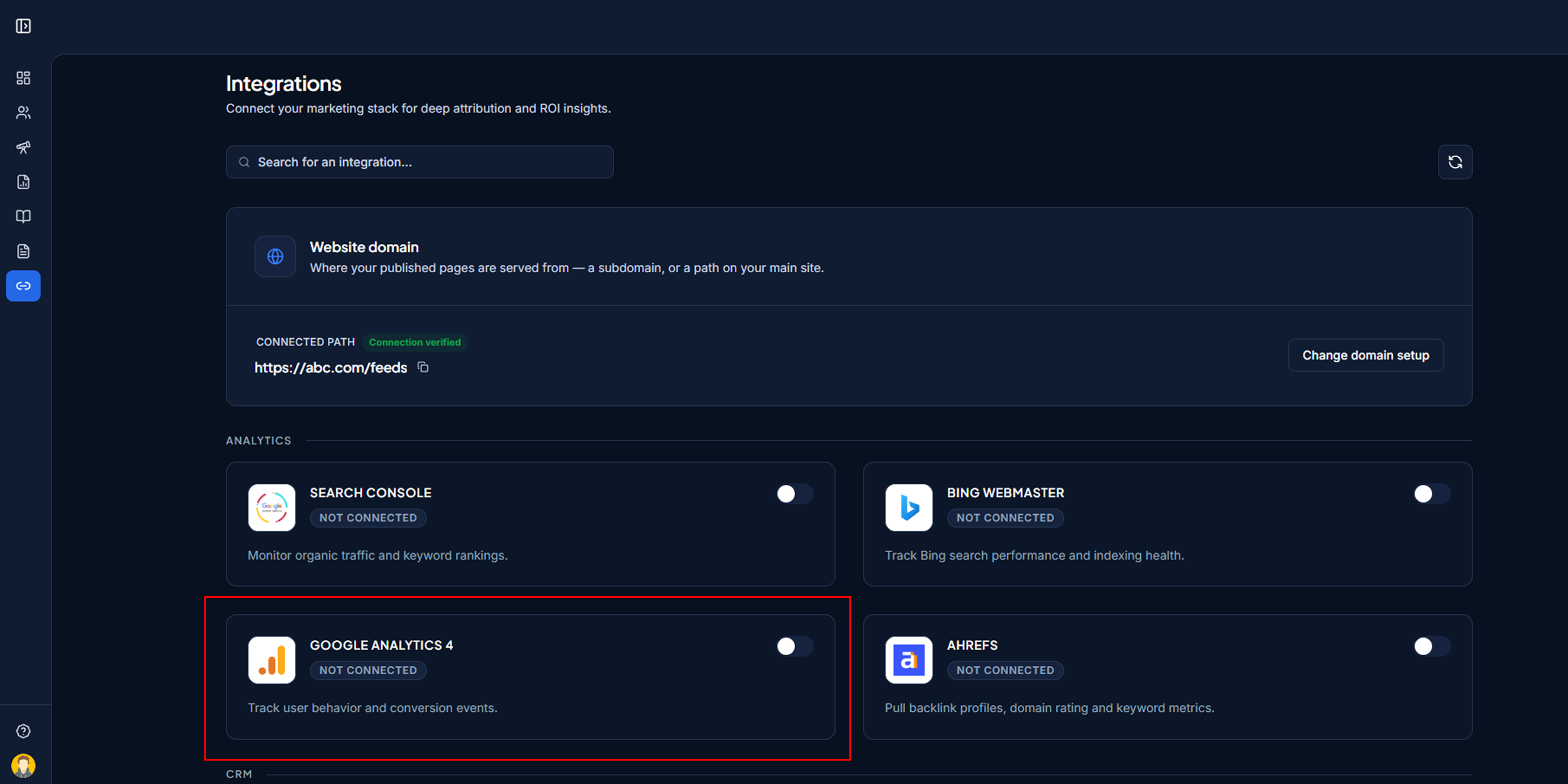
The Integrations page, with the Google Analytics 4 card visible and showing “Not Connected”. -
Turn on the Google Analytics 4 toggle
Click the toggle on the Google Analytics 4 card. A
Processing...
screen appears withEstablishing secure channel with Google Analytics...
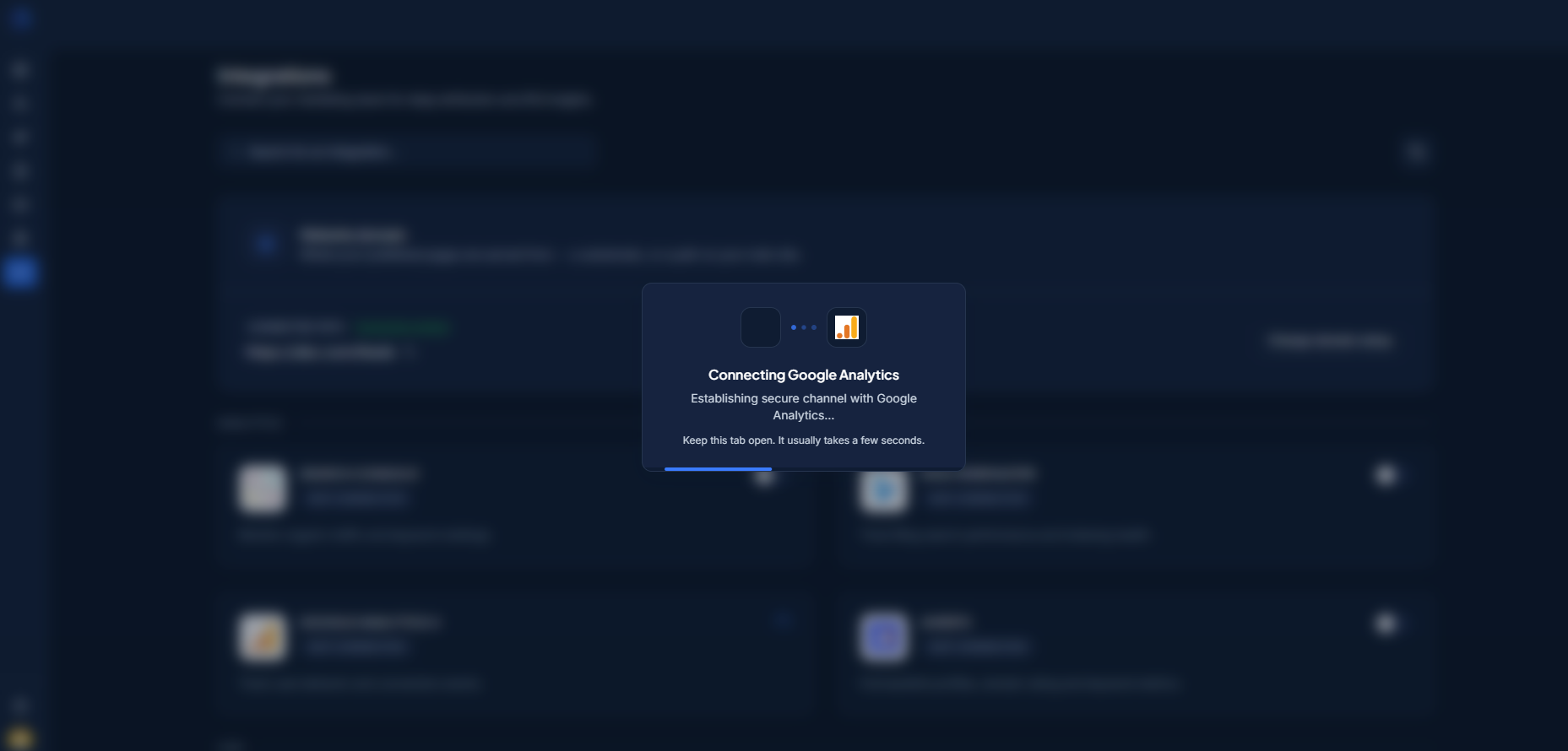
The Google Analytics 4 card with the toggle being switched on. -
Sign in with Google and allow access
Choose the Google account that can see your GA4 property, review the permissions and allow access.
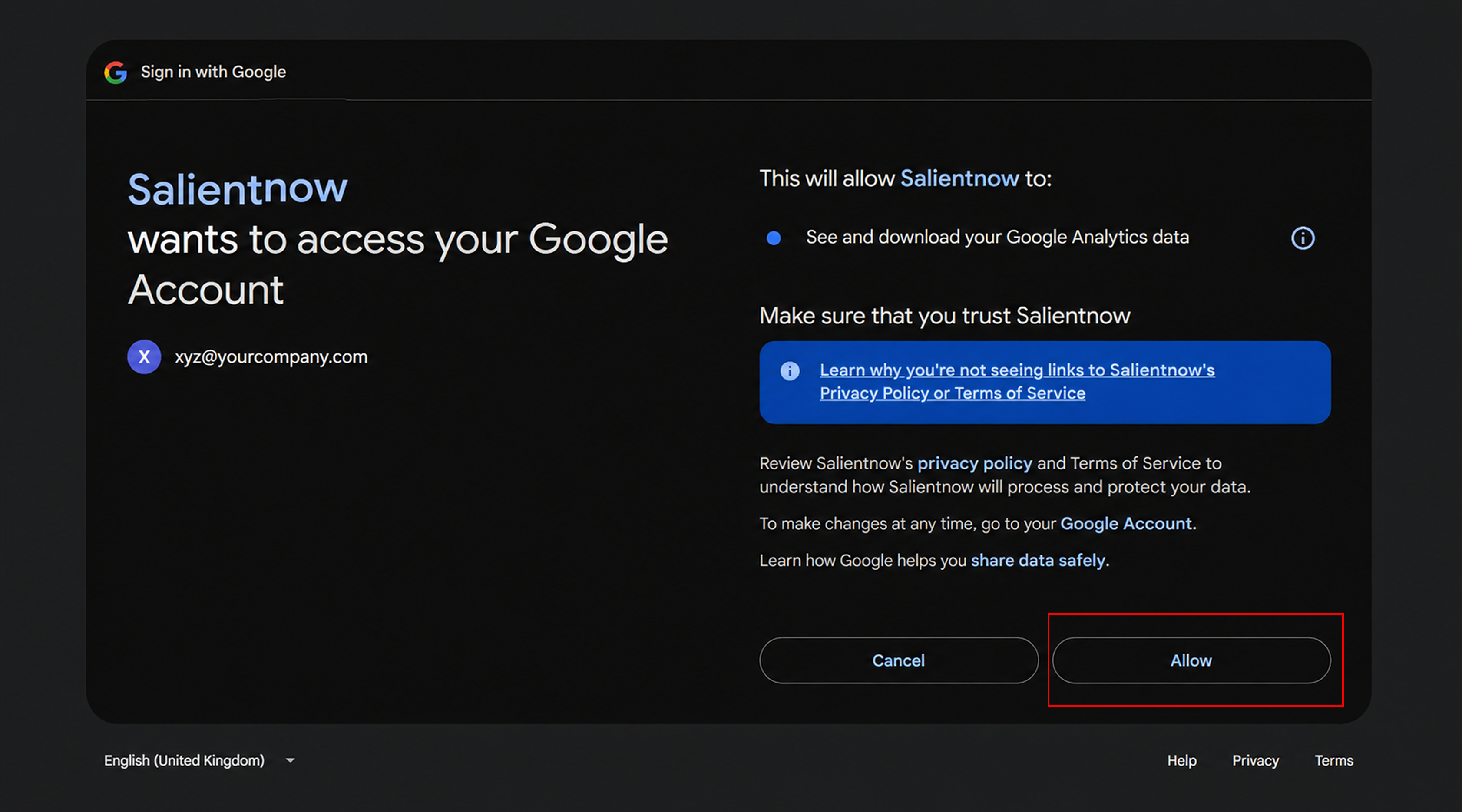
Google’s account chooser and permission screen for Salient (Analytics read access). -
Wait while Salient loads your properties
You come back to the Integrations page and see
Scanning GA4 properties...
andSyncing data streams...
, then the toastGoogle Analytics Verified!
. -
Pick your GA4 property
A window titled
Select GA4 Property
lists each property by name and property ID. UseSearch accounts...
to filter, then click the property that tracks the domain Salient publishes on.When it's saved you'll see
Google Analytics Connected Successfully!
Not sure which property is right? In Google Analytics go to Admin → Property details and compare the Property ID with the number shown in the picker.
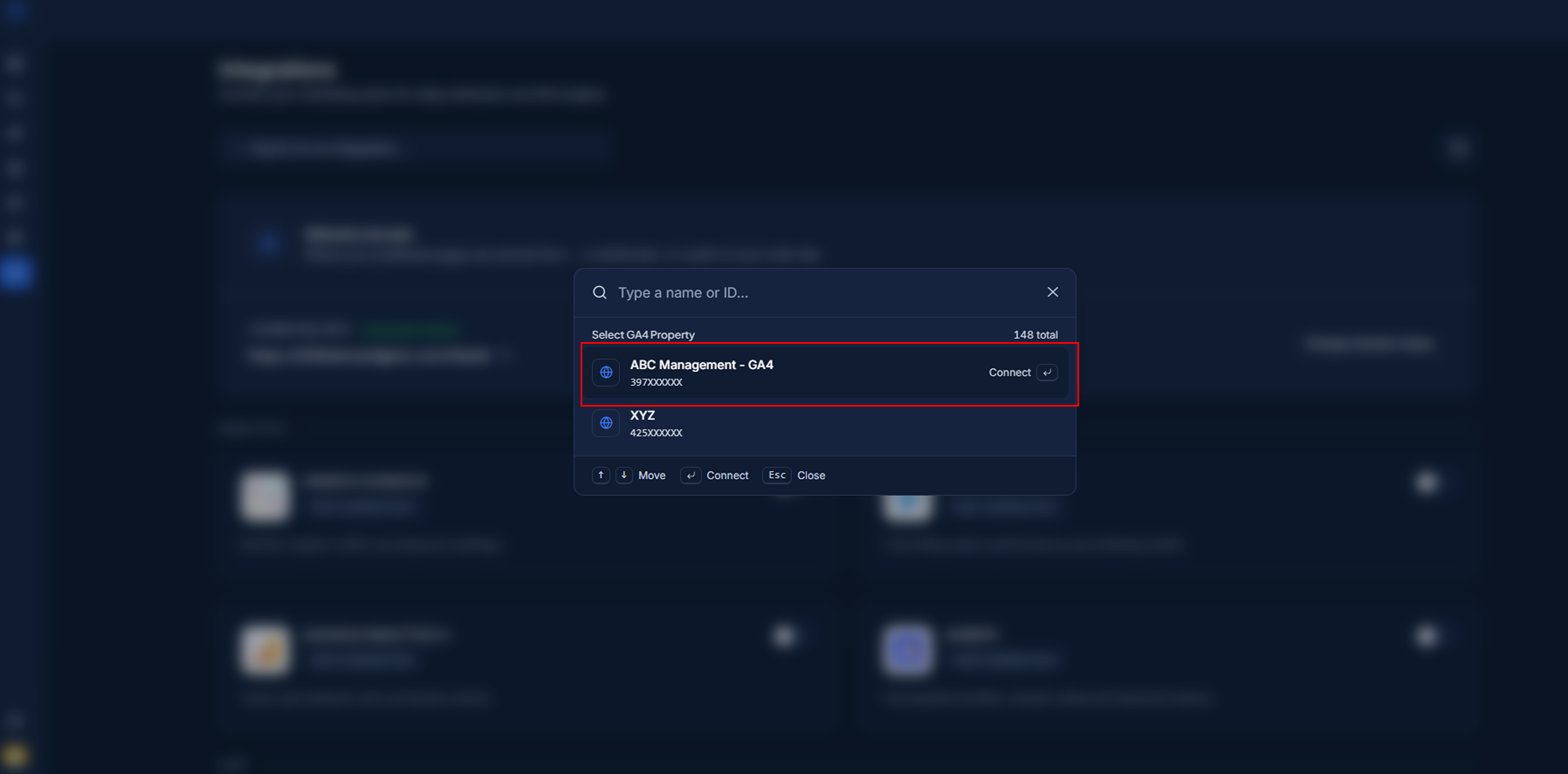
The “Select GA4 Property” picker listing properties with their property IDs. -
Check that the card shows Active
Back on the Integrations page, the Google Analytics 4 card now shows a green Active ✓ badge, the toggle is on, and the card reads Connected to: followed by the account you picked. Data starts appearing in your dashboard after the next sync.
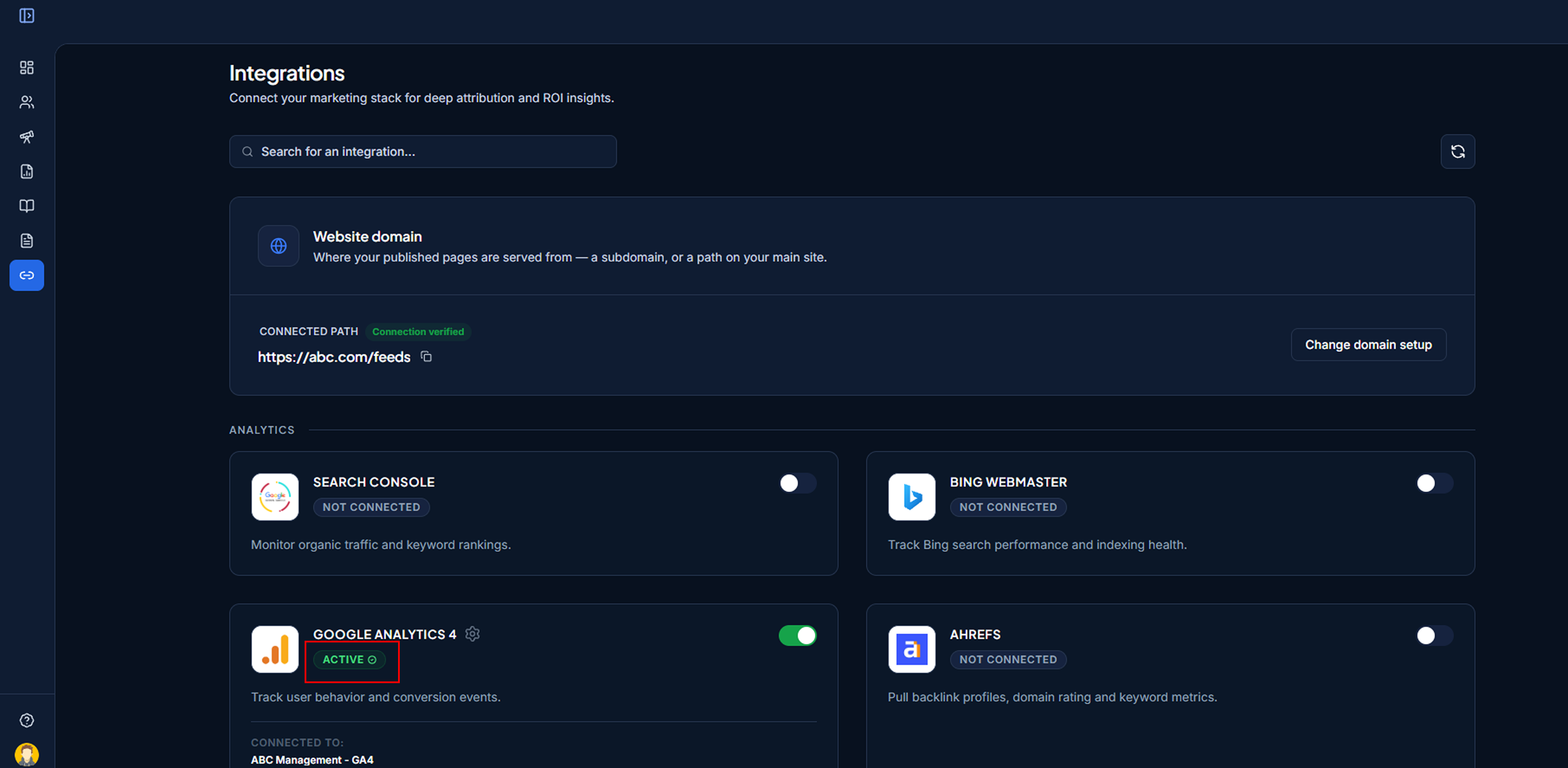
The Google Analytics 4 card in its connected state: “Active ✓”, toggle on, and “Connected to:” showing the account.
Change or disconnect
Change the connected account
Click the gear icon next to the Google Analytics 4 title. This reopens the property picker so you can choose a different GA4 property.
Disconnect
Turn the toggle off. A dialog asks Disconnect Google Analytics
and explains: Are you sure you want to disconnect Google Analytics? This will stop tracking and syncing data from this integration.
Click Disconnect to confirm. You'll see Account Disconnected
.
Disconnecting removes our access immediately. You can also revoke access from the Google Analytics side at any time.
Troubleshooting
These are the messages you might see in the dashboard, and what to do about each one.
I see “No GA4 properties found.”
The Google account has no GA4 properties it can read. Reconnect with a different Google account, or ask your GA admin to add yours under Admin → Property access management with the Viewer role.
I see “Failed to load GA4 properties.”
Google didn't return the list. Refresh the Integrations page and try again from the gear icon on the card.
The Visitors chart says “Google Analytics Authentication Failed”
The message Your Google Analytics credentials have expired or are invalid.
means Google revoked the access (for example after a password change, or because the user was removed from the property). Click Reconnect and go through the steps again.
The Visitors chart says “Connect Google Analytics”
GA4 isn't connected for this brand yet. Click Set up integration to jump to the Integrations page. Remember that each brand has its own connections.
Numbers are lower than in Google Analytics
That's expected. Salient only counts visits to the pages it publishes for you, while GA4 shows your whole site.