
What this unlocks
Track Bing search performance and indexing health. Once connected, Bing Webmaster Tools data shows up in these places in your dashboard:
Bing search performance
Clicks and impressions for your pages on Bing.
Indexing health
Whether Bing is crawling and indexing the pages Salient publishes.
We only use the key to read your verified sites and search performance.
Before you begin
Have these ready. The connection itself only takes a few minutes.
- A Salient dashboard login with access to the brand you are connecting.
- Your site added and verified in Bing Webmaster Tools. You can import it from Google Search Console in a couple of clicks.
- Access to the Bing Webmaster account that owns the site, so you can create an API key.
Step by step
Get your API key from Bing
-
Open Bing Webmaster Tools settings
Sign in at bing.com/webmasters and click the gear icon (Settings) in the top right.

Bing Webmaster Tools with the Settings (gear) icon highlighted. -
Go to API Access → API Key
Open the API Access tab, then API Key. Click Generate API Key if you don't have one yet.
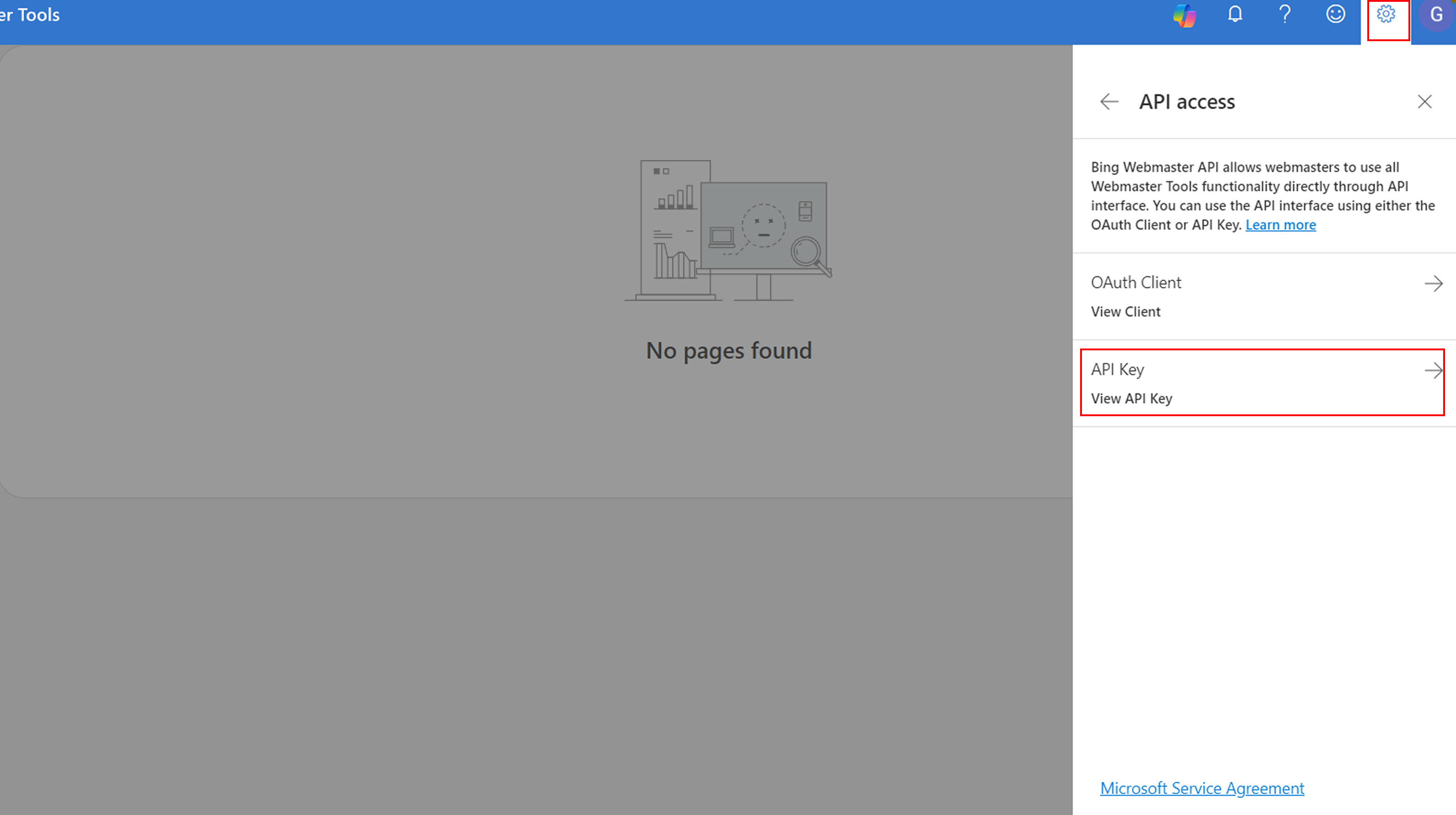
The API Access tab in Bing Webmaster settings, with the API Key section open. -
Copy the key
Copy the 32-character key. It looks like
0123456789abcdef0123456789abcdef.Treat the key like a password. Paste it straight into Salient and don't send it over email or chat.
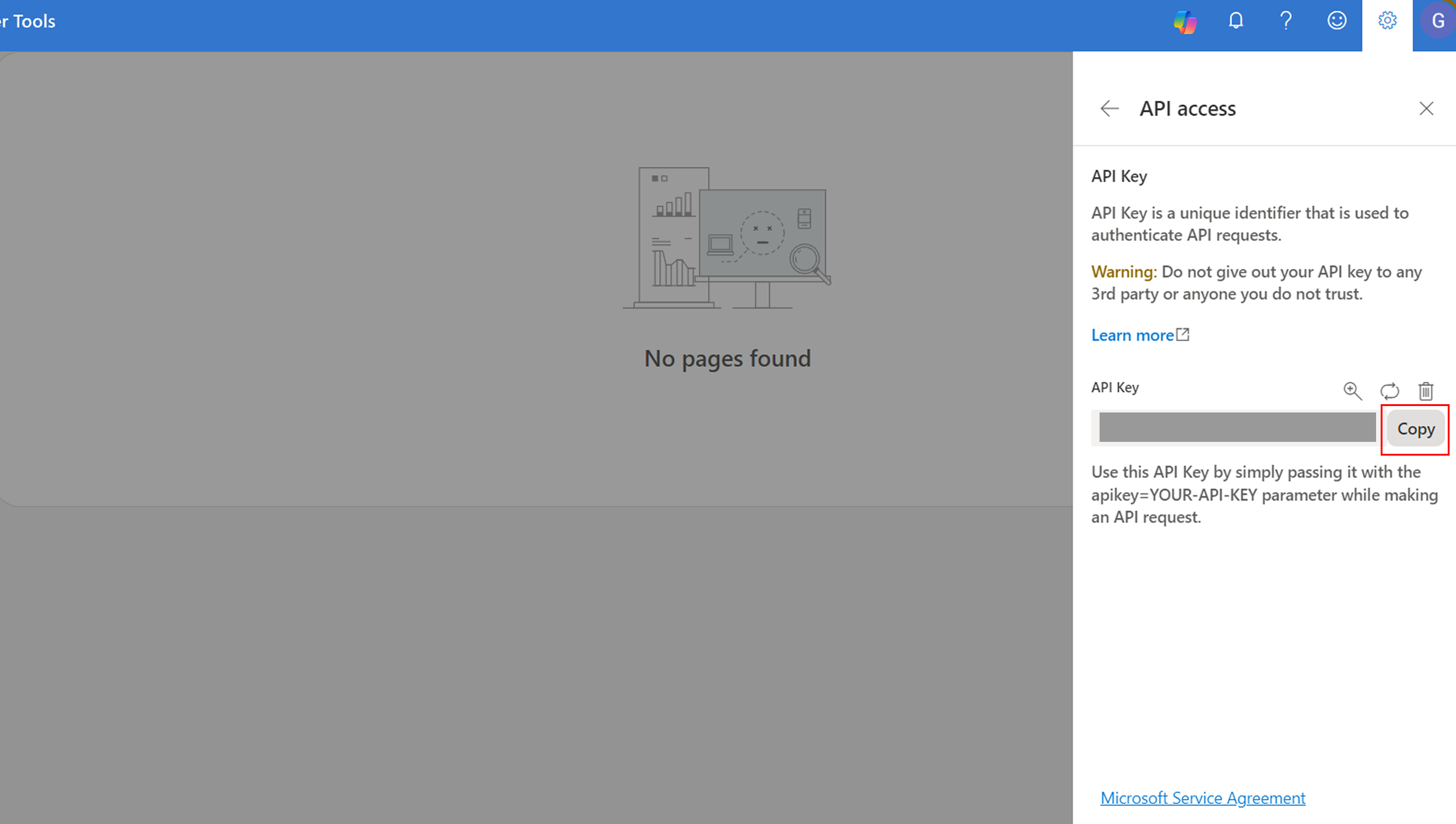
The generated API key with the copy button highlighted. Blur the key before saving this screenshot.
Connect it in Salient
-
Open Integrations in the dashboard
Sign in at app.salientnow.io. If your login covers more than one brand, pick the brand you want to connect on the
Pick the brand you want to work on.
screen. Then click Integrations in the left sidebar.Cards are grouped under Analytics and CRM. You can also type in
Search for an integration...
to find the Bing Webmaster card.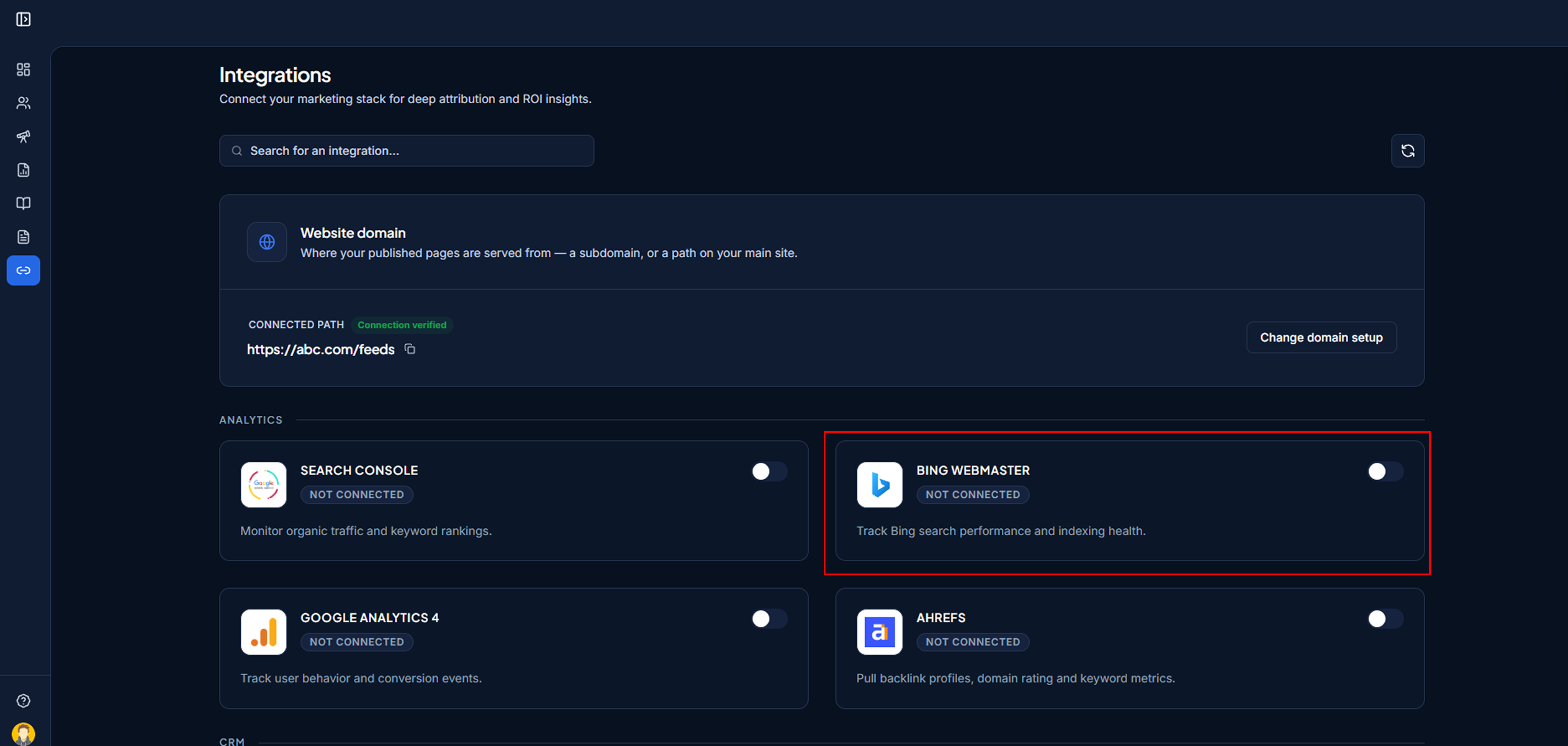
The Integrations page, with the Bing Webmaster card visible and showing “Not Connected”. -
Turn on the Bing Webmaster toggle
Click the toggle on the Bing Webmaster card. A window titled
Connect Bing Webmaster
opens. -
Paste the key and click Connect
Paste the key into the API Key field and click Connect. The button reads
Verifying...
while Salient checks the key with Bing. When it's accepted you'll seeBing Webmaster Tools Verified!
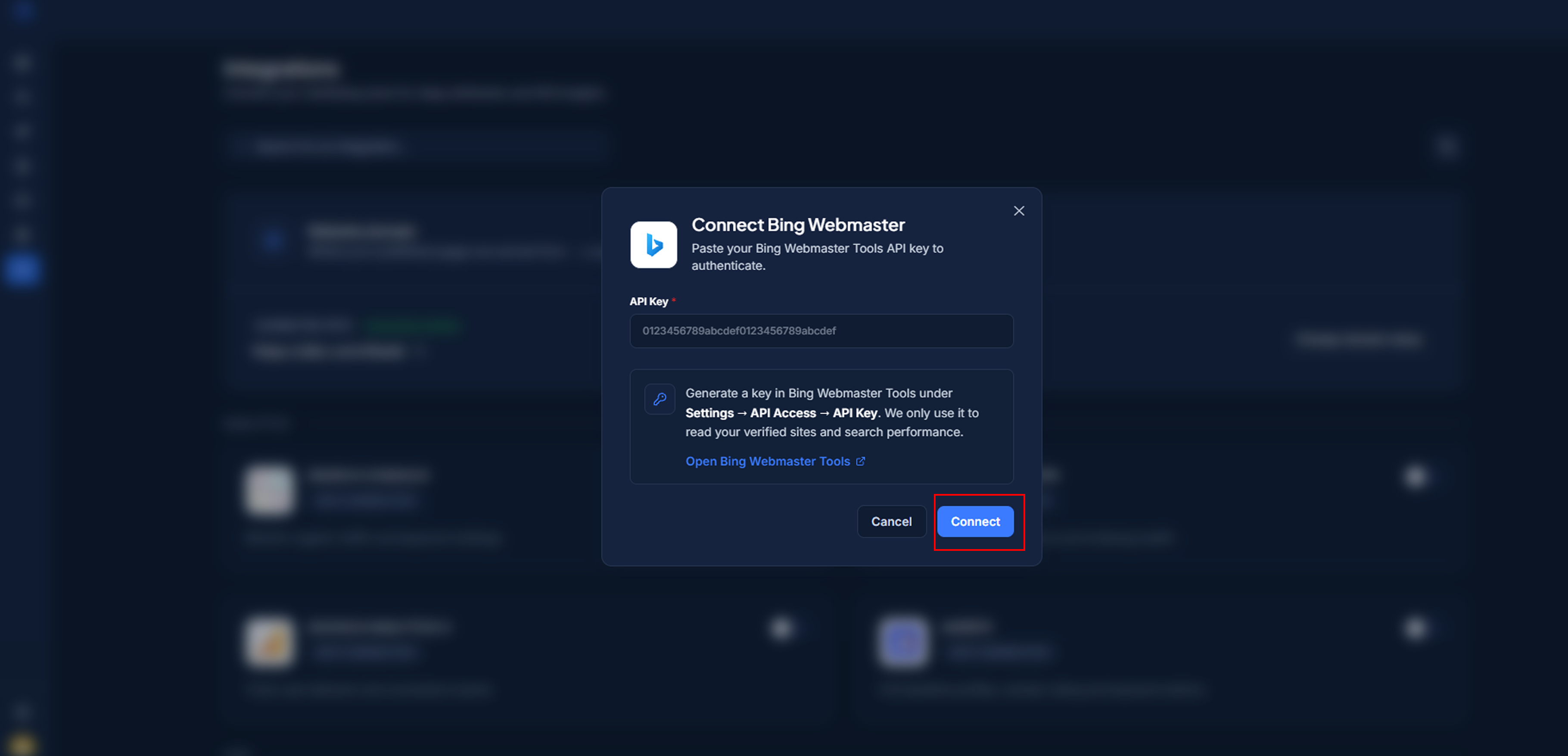
The “Connect Bing Webmaster” window with the API Key field and Connect button. -
Pick your site
A window titled
Select Bing Webmaster Site
lists the sites on that Bing account. Click the site Salient publishes on. You'll seeBing Webmaster Tools Connected Successfully!
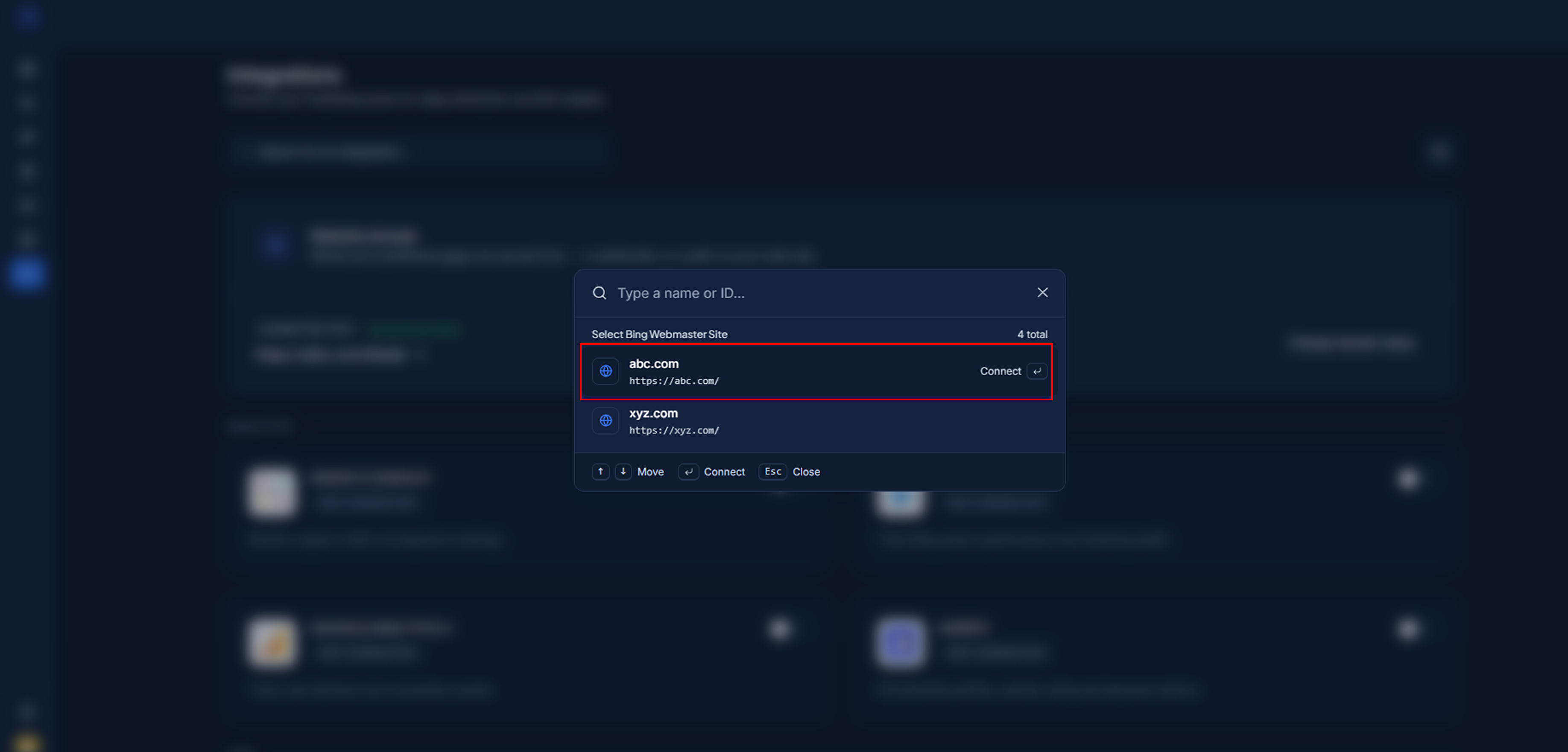
The “Select Bing Webmaster Site” picker listing sites. -
Check that the card shows Active
Back on the Integrations page, the Bing Webmaster card now shows a green Active ✓ badge, the toggle is on, and the card reads Connected to: followed by the account you picked. Data starts appearing in your dashboard after the next sync.
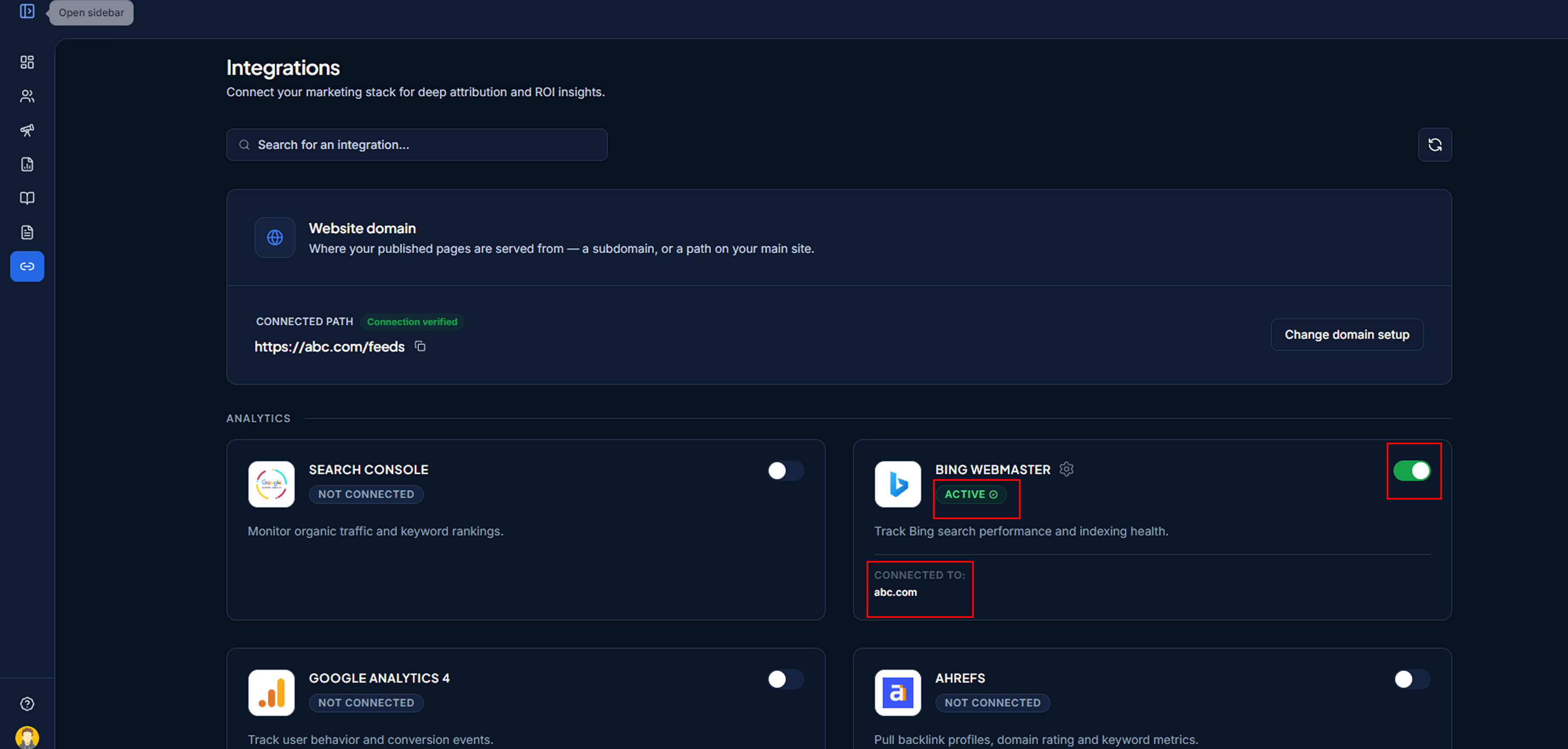
The Bing Webmaster card in its connected state: “Active ✓”, toggle on, and “Connected to:” showing the account.
Change or disconnect
Change the connected account
Click the gear icon next to the Bing Webmaster title. This reopens the site picker so you can choose a different Bing site. To use a different key, turn the toggle off and connect again with the new key.
Disconnect
Turn the toggle off. A dialog asks Disconnect Bing Webmaster Tools
and explains: Are you sure you want to disconnect Bing Webmaster Tools? This will stop tracking and syncing data from this integration.
Click Disconnect to confirm. You'll see Account Disconnected
.
Disconnecting removes our access immediately. You can also revoke access from the Bing Webmaster Tools side at any time.
Troubleshooting
These are the messages you might see in the dashboard, and what to do about each one.
I see “Please enter your Bing Webmaster Tools API key.”
The API Key field was empty when you clicked Connect. Paste the key and try again.
I see “We couldn't verify that API key. Please check it and try again.”
Bing rejected the key. Check that you copied the whole key with no spaces at the start or end. If you regenerated the key in Bing, the old one stops working, so paste the newest one.
I see “No Bing Webmaster sites found.”
The key is valid but the Bing account has no sites. Add and verify your site in Bing Webmaster Tools (you can import it from Google Search Console), then connect again.
I see “Bing Webmaster Tools Connection Failed!”
The site couldn't be saved. Click the gear icon on the card and pick the site again.